

TL;DR
You’ll (1) deploy or pick an MCP server on Cloud MCP, (2) add it to Claude as a Claude Connector, (3) toggle Claude Connectors tools, and (4) prompt Claude to use your Connectors in a chat.Prerequisites
- A Cloud MCP account with at least one deployed MCP server (e.g., Playwright, Desktop Commander, or any server from the registry).
- A Claude account with MCP support and Connectors available in your workspace.
- You’re comfortable approving an OAuth flow when Claude connects to your Cloud MCP server.
Tip: Cloud MCP exposes OAuth-protected Remote (HTTP) MCP endpoints. Claude never sees your Cloud MCP credentials; it just calls the server’s tools over the OAuth session.
How to Use Claude Connectors with Cloud MCP (Video + Guide)
https://youtu.be/hlHnhAr0nFU1) Pick (or deploy) an MCP server on Cloud MCP
- Open Cloud MCP → Servers and choose a server that fits your task (e.g., a search or code-aware tool).
- If needed, provide env vars/secrets and click Deploy. Wait until the server is Healthy.
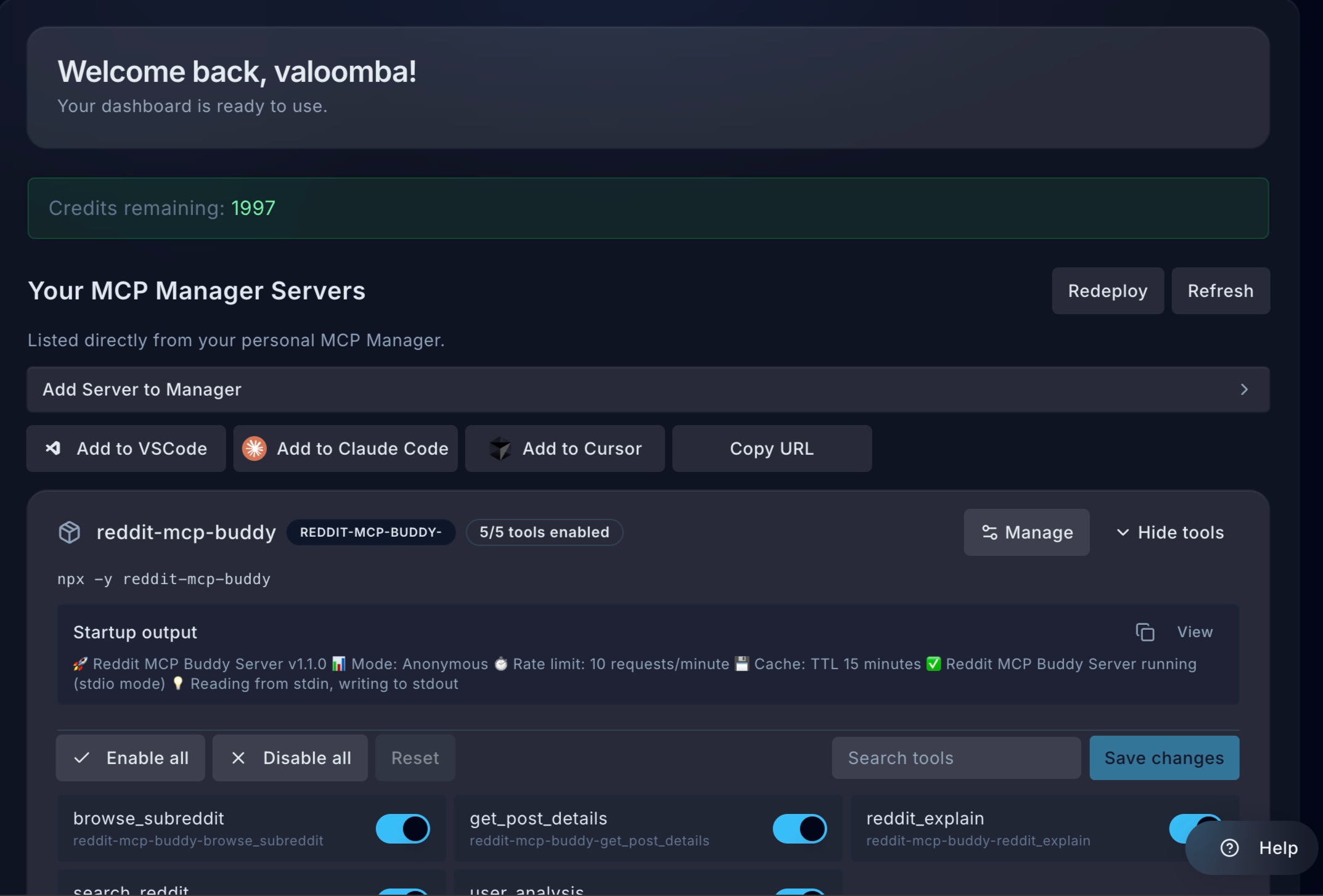
- Go to the server details page and locate and click the Copy URL button.
2) Add the Cloud MCP Connector to Claude (Remote HTTP MCP)
-
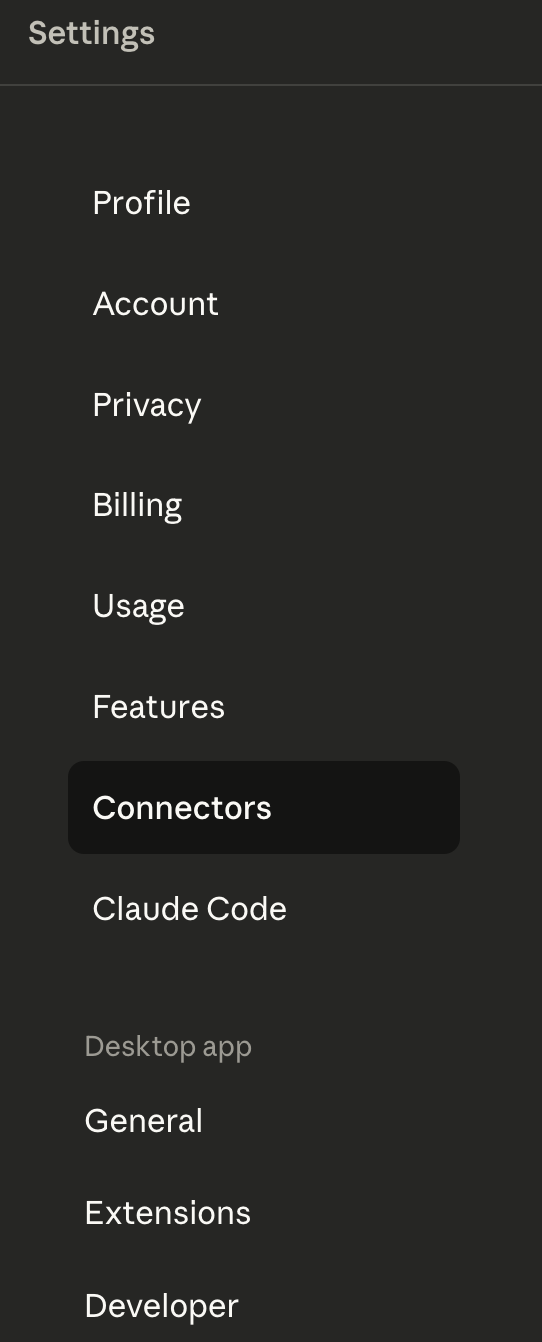
In Claude, open Settings → Connectors.
-
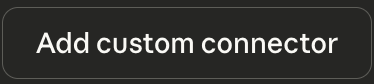
Choose Add Custom Connector.
- Paste the Cloud MCP server URL (the OAuth-protected endpoint that Cloud MCP provides).
- Approve the Cloud MCP OAuth screen when prompted.
-
After a successful handshake, you should see the tools listed in the chat window; expand it to confirm.
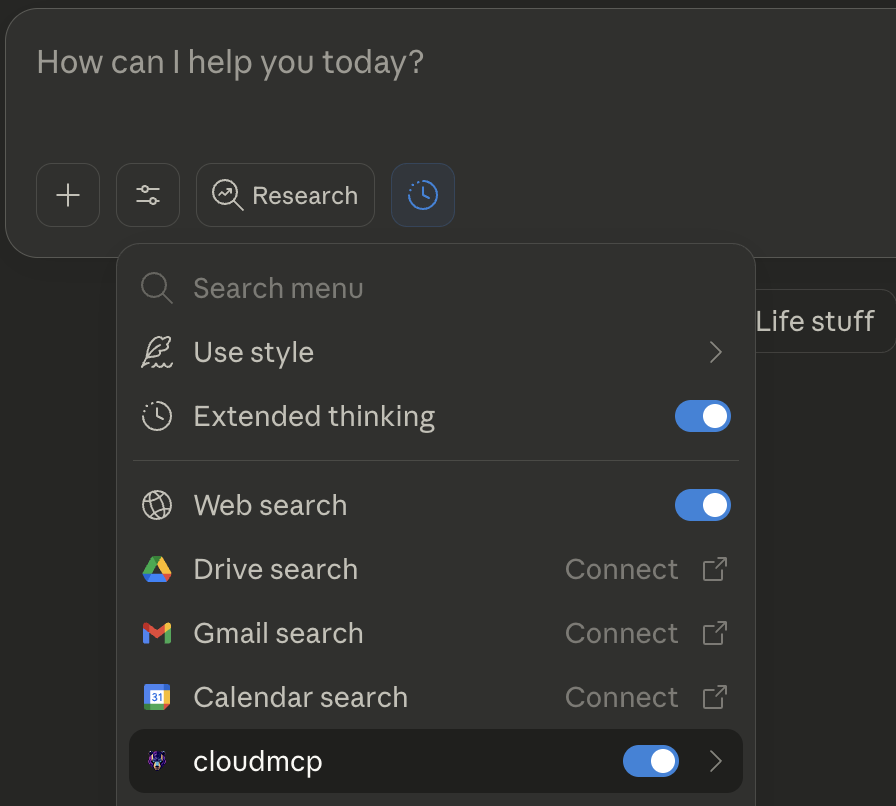
If tools don’t appear: re-open the connection panel, confirm URL in Cloud MCP, and retry the OAuth approval.
4) Use your Cloud MCP Claude Connector Tools!
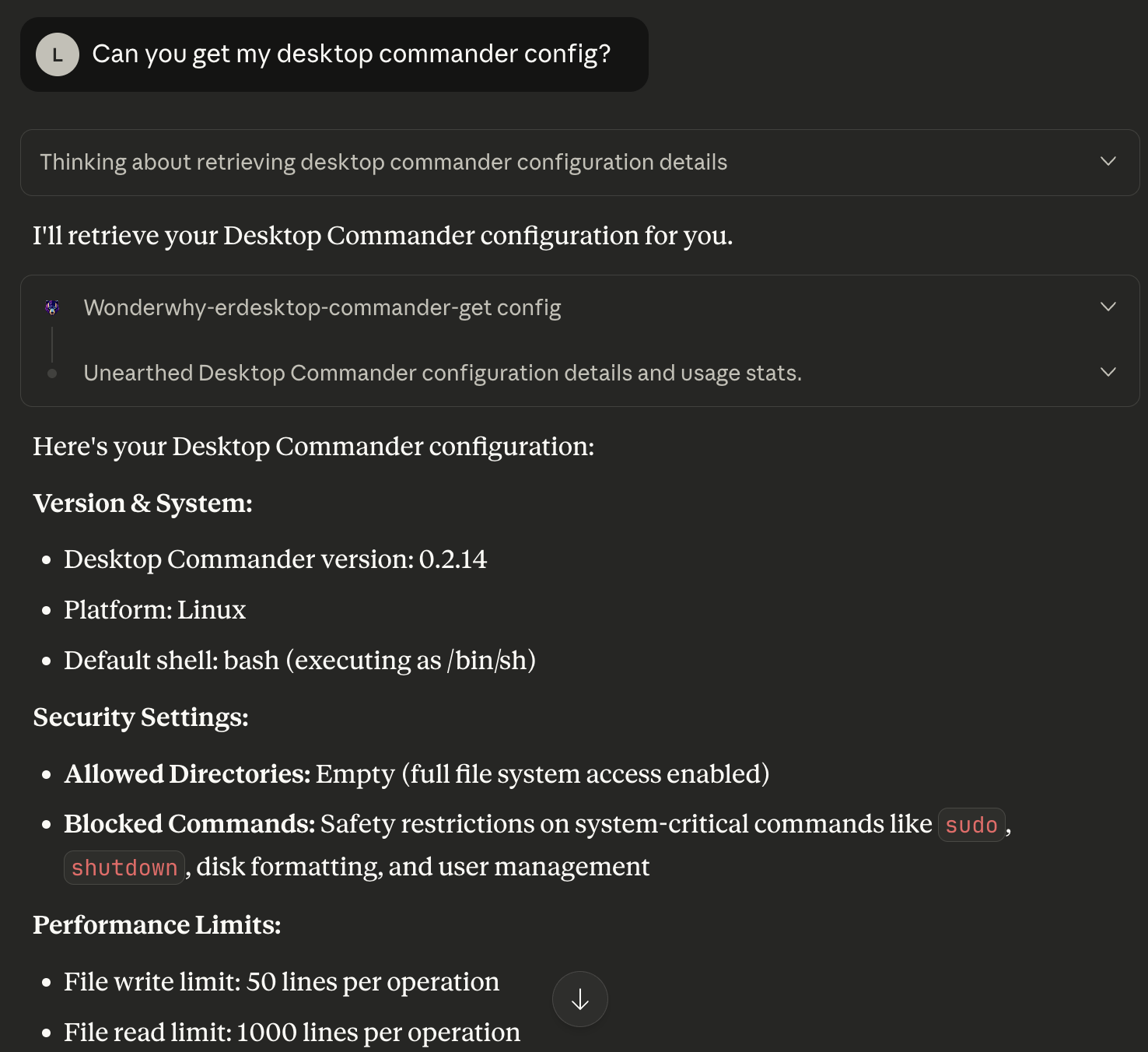
6) Troubleshooting
- MCP tools don’t appear in Claude: Reconnect the Remote (HTTP) server in Settings; confirm the Cloud MCP server is Healthy and the OAuth grant is still valid.
- Connector not available in chat: Ensure it’s toggled on in Settings → Connectors and that you’ve authorized it.
- Ambiguous tool routing: In your prompt, explicitly say which tool to use for which sub-task. Avoid enabling unnecessary connectors/tools for a session.
7) Privacy & access notes
- Cloud MCP keeps your MCP server behind OAuth; Claude receives only tool responses.
- Disable any connector you don’t need for a session.
8) Where to go next
- Add more MCP servers to Cloud MCP (e.g., research, code intelligence, browsers).
- Create small, purpose-built prompts that map cleanly to a tool or connector.
- Save a “starter chat” template in your team wiki with the exact toggles and prompt you use for repeatable tasks.
Need Help?
If you run into any issues:- Reach out to me
- Check our Blog Posts
- Join our Discord community
Ready to deploy your Claude Connectors? Sign Up for a plan! →