> ## Documentation Index
> Fetch the complete documentation index at: https://docs.cloudmcp.run/llms.txt
> Use this file to discover all available pages before exploring further.
# Using Claude Connectors with Cloud MCP
> A fast, no-fluff walkthrough showing how to connect Cloud MCP to Claude, enable Connectors, and use them together in a single conversation.
## TL;DR
You’ll (1) deploy or pick an MCP server on **Cloud MCP**, (2) add it to **Claude** as a Claude Connector, (3) toggle **Claude Connectors** tools, and (4) prompt Claude to use your Connectors in a chat.
***
## Prerequisites
* A **Cloud MCP** account with at least one deployed MCP server (e.g., Playwright, Desktop Commander, or any server from the registry).
* A **Claude** account with **MCP** support and **Connectors** available in your workspace.
* You’re comfortable approving an OAuth flow when Claude connects to your Cloud MCP server.
> Tip: Cloud MCP exposes **OAuth-protected Remote (HTTP) MCP** endpoints. Claude never sees your Cloud MCP credentials; it just calls the server’s tools over the OAuth session.
***
***
# How to Use Claude Connectors with Cloud MCP (Video + Guide)
[https://youtu.be/hlHnhAr0nFU](https://youtu.be/hlHnhAr0nFU)
***
## 1) Pick (or deploy) an MCP server on Cloud MCP
1. Open Cloud MCP → **Servers** and choose a server that fits your task (e.g., a search or code-aware tool).
2. If needed, provide env vars/secrets and click **Deploy**. Wait until the server is **Healthy**.
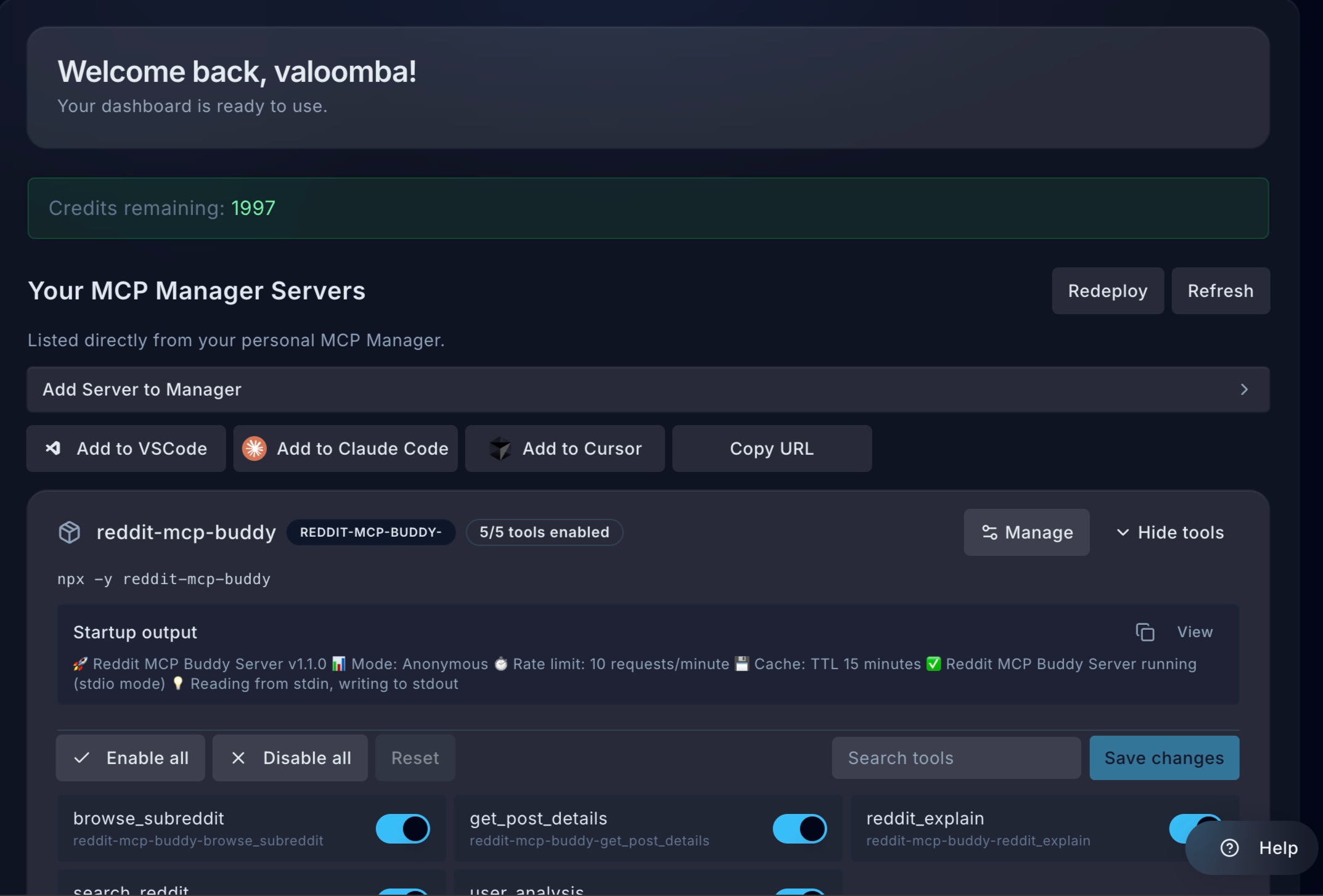
3. Go to the server details page and locate and click the **Copy URL** button.
 ***
## 2) Add the Cloud MCP Connector to Claude (Remote HTTP MCP)
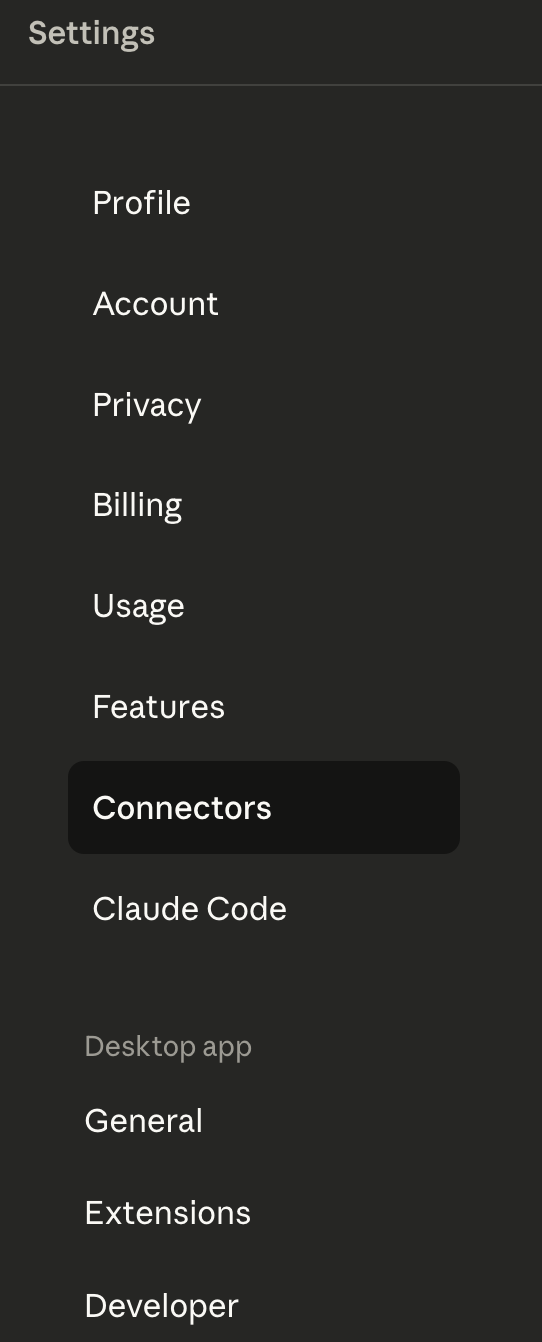
1. In Claude, open **Settings → Connectors**.
***
## 2) Add the Cloud MCP Connector to Claude (Remote HTTP MCP)
1. In Claude, open **Settings → Connectors**.
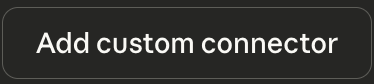
 2. Choose **Add Custom Connector**.
 3. Paste the Cloud MCP server URL (the OAuth-protected endpoint that Cloud MCP provides).
4. Approve the **Cloud MCP OAuth** screen when prompted.
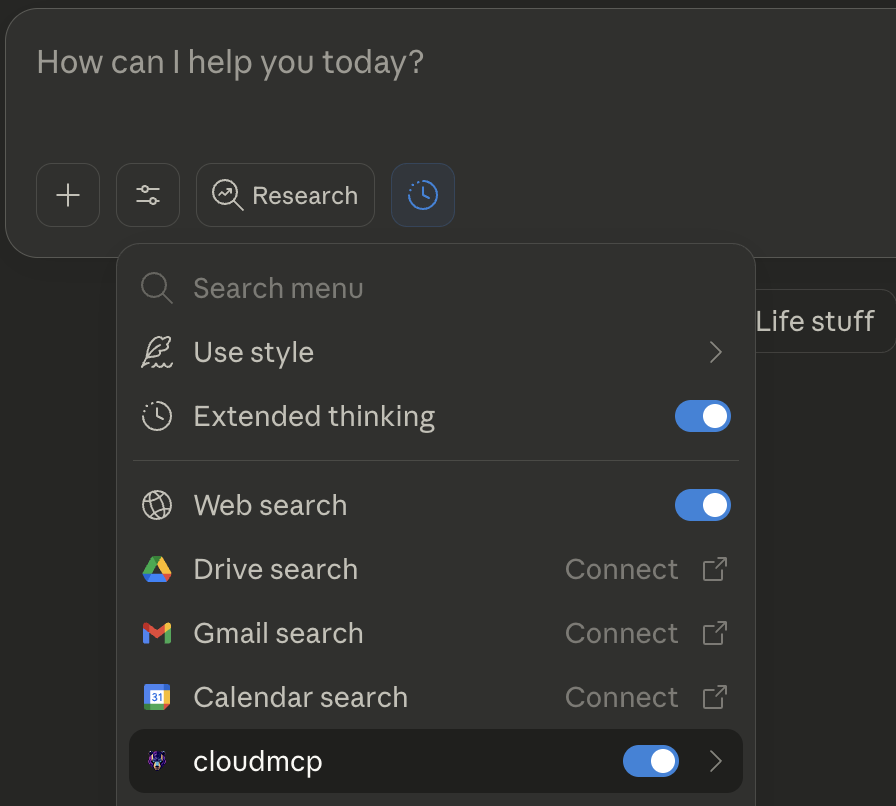
5. After a successful handshake, you should see the tools listed in the chat window; expand it to confirm.
3. Paste the Cloud MCP server URL (the OAuth-protected endpoint that Cloud MCP provides).
4. Approve the **Cloud MCP OAuth** screen when prompted.
5. After a successful handshake, you should see the tools listed in the chat window; expand it to confirm.
 > If tools don’t appear: re-open the connection panel, confirm URL in Cloud MCP, and retry the OAuth approval.
***
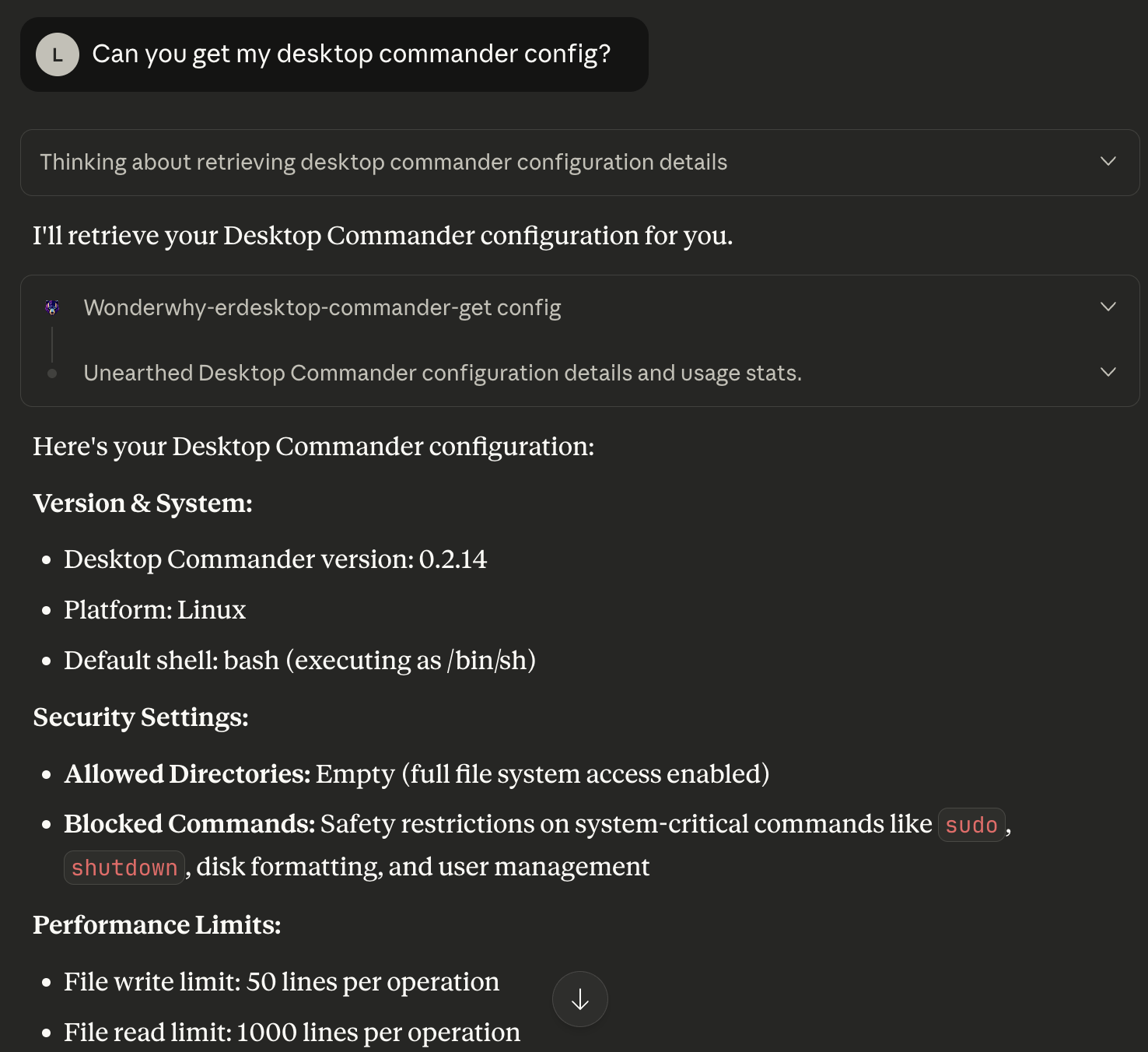
## 4) Use your Cloud MCP Claude Connector Tools!
> If tools don’t appear: re-open the connection panel, confirm URL in Cloud MCP, and retry the OAuth approval.
***
## 4) Use your Cloud MCP Claude Connector Tools!
 ***
## 6) Troubleshooting
* **MCP tools don’t appear in Claude:** Reconnect the Remote (HTTP) server in Settings; confirm the Cloud MCP server is **Healthy** and the OAuth grant is still valid.
* **Connector not available in chat:** Ensure it’s toggled on in **Settings → Connectors** and that you’ve authorized it.
* **Ambiguous tool routing:** In your prompt, explicitly say *which* tool to use for *which* sub-task. Avoid enabling unnecessary connectors/tools for a session.
***
## 7) Privacy & access notes
* Cloud MCP keeps your MCP server behind **OAuth**; Claude receives only tool responses.
* Disable any connector you don’t need for a session.
***
## 8) Where to go next
* Add more MCP servers to Cloud MCP (e.g., research, code intelligence, browsers).
* Create **small, purpose-built** prompts that map cleanly to a tool or connector.
* Save a “starter chat” template in your team wiki with the exact toggles and prompt you use for repeatable tasks.
### Need Help?
If you run into any issues:
* Reach out to [me](mailto:vikash@cloudmcp.run)
* Check our [Blog Posts](https://cloudmcp.run/blog)
* Join our [Discord community](https://discord.gg/cloudmcp)
***
*Ready to deploy your Claude Connectors? [Sign Up for a plan! →](https://cloudmcp.run/pricing?utm_source=blog\&utm_medium=claude-connectors-guide)*
***
## 6) Troubleshooting
* **MCP tools don’t appear in Claude:** Reconnect the Remote (HTTP) server in Settings; confirm the Cloud MCP server is **Healthy** and the OAuth grant is still valid.
* **Connector not available in chat:** Ensure it’s toggled on in **Settings → Connectors** and that you’ve authorized it.
* **Ambiguous tool routing:** In your prompt, explicitly say *which* tool to use for *which* sub-task. Avoid enabling unnecessary connectors/tools for a session.
***
## 7) Privacy & access notes
* Cloud MCP keeps your MCP server behind **OAuth**; Claude receives only tool responses.
* Disable any connector you don’t need for a session.
***
## 8) Where to go next
* Add more MCP servers to Cloud MCP (e.g., research, code intelligence, browsers).
* Create **small, purpose-built** prompts that map cleanly to a tool or connector.
* Save a “starter chat” template in your team wiki with the exact toggles and prompt you use for repeatable tasks.
### Need Help?
If you run into any issues:
* Reach out to [me](mailto:vikash@cloudmcp.run)
* Check our [Blog Posts](https://cloudmcp.run/blog)
* Join our [Discord community](https://discord.gg/cloudmcp)
***
*Ready to deploy your Claude Connectors? [Sign Up for a plan! →](https://cloudmcp.run/pricing?utm_source=blog\&utm_medium=claude-connectors-guide)*